
Hidden Form Fields: Dynamic Expiry for Wallet Passes
Set an expiry date on every pass automatically — without adding a date field to your public registration form.
In short: Add a hidden field in the form builder, choose fixed date or days after signup, map it to the card and to Scheduled Pass Expiry. The platform fills the value when someone registers.
Why this matters
Many passes should expire a set number of days after signup — for example, 365 days from registration. Two settings are easy to mix up:
- Scheduled Pass Expiry — when the pass moves to Expired in Apple Wallet and Google Wallet.
- Front-of-card fields — what date the customer sees on the pass.
Changing one does not change the other. Hidden fields tie them together: you set the rule once, map it in Step 3, and every new registration gets the right date. Visitors never fill it in.
How it works
- Add a field and turn on Hide from visitors.
- Pick a fixed date or days after signup (e.g. 365).
- In Step 3, map the field to the card front and to Scheduled Pass Expiry.
Step 1 — Add a hidden field
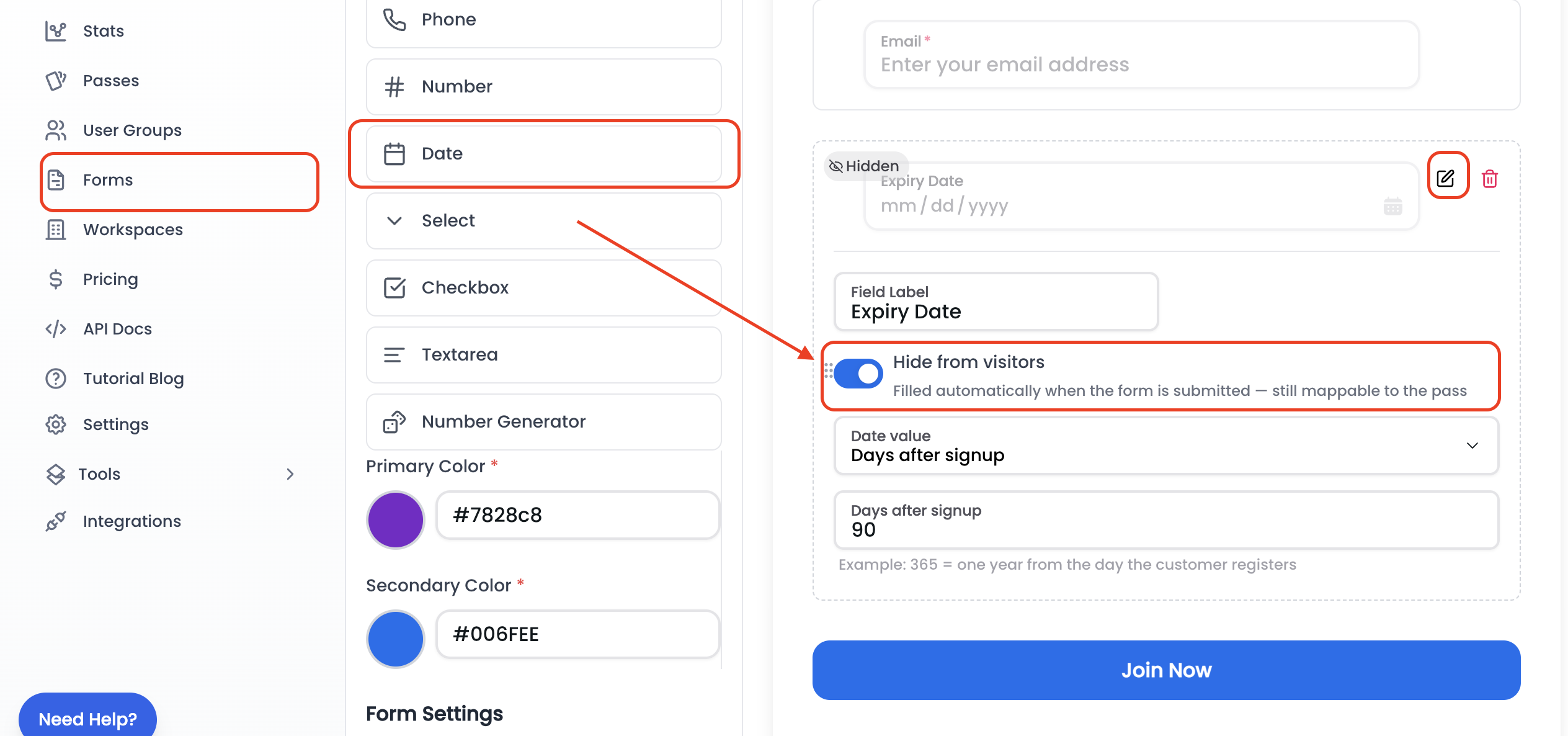
In the form builder, add a Date field (e.g. label it Expiry Date). Enable Hide from visitors. It stays in your design with a Hidden badge but does not show on the public form.
Then choose how the date is set:
- Days after signup — e.g. 365 for one year from submit.
- Fixed date — same expiry for every registration.
Other field types (text, number, etc.) can also be hidden with a default value applied on each submit.
Step 2 — Map to the pass and wallet expiry
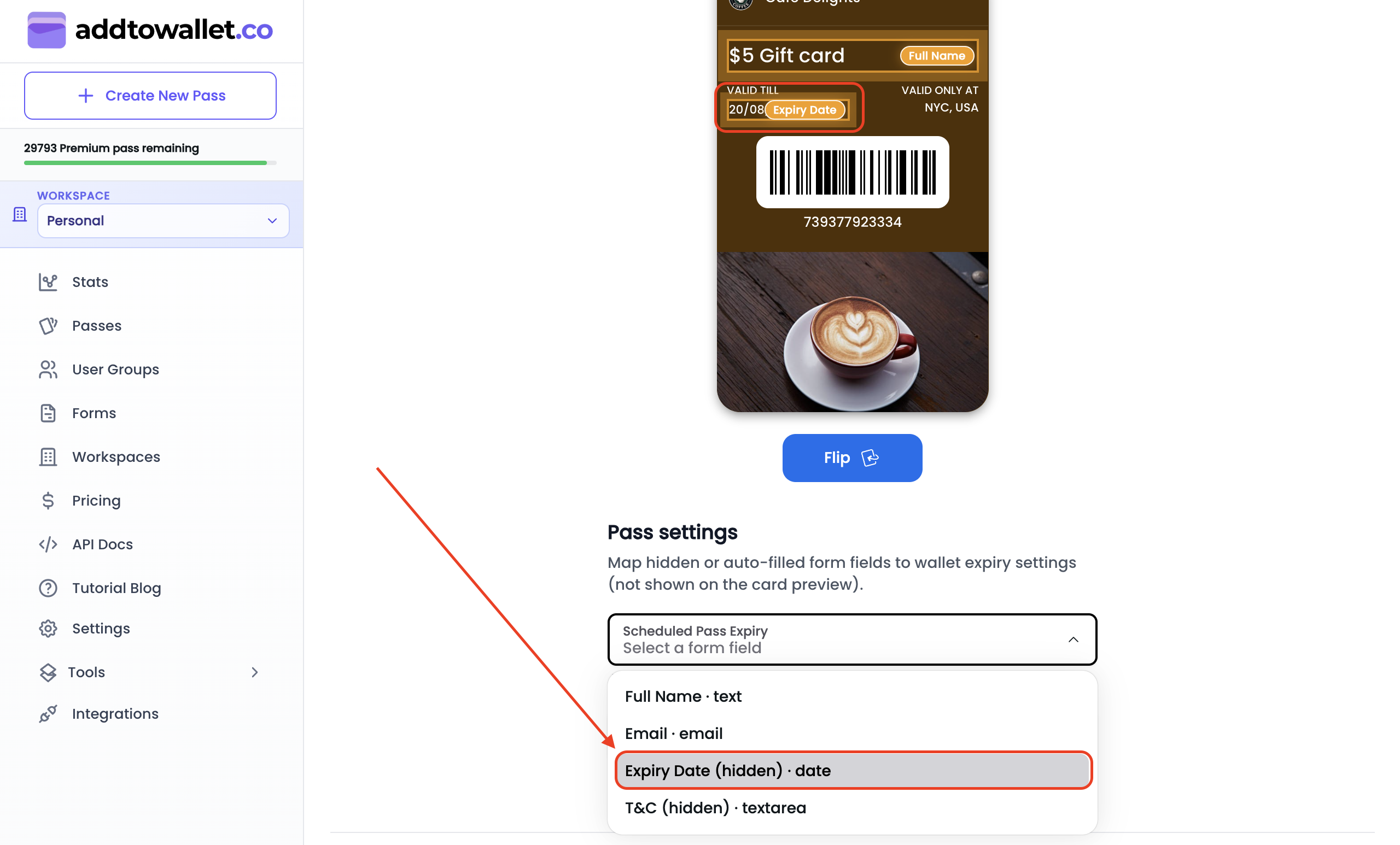
In Step 3: Map Form Fields to Pass, connect your hidden field in two places.
On the card (what customers see)
Click a front-row field on the pass preview and assign your hidden Expiry Date field.
Pass settings (when the wallet expires)
Under the card preview, open Pass settings:
- Scheduled Pass Expiry — marks the pass Expired in the wallet.
- Expiry notification date — only if your template uses expiry notifications.
Use the same hidden field for the visible row and Scheduled Pass Expiry so display and expiry stay aligned.
Example: 365-day membership
- Label: Expiry Date
- Hide from visitors: On
- Date value: 365 days after signup
- Map to front row + Scheduled Pass Expiry
- Save and test with a new registration
Each signup gets expiry 365 days from that submission. Existing passes are not updated — only new ones after you save.
Quick tips
- Test with a new signup; old test passes keep their original dates.
- One hidden field can map to multiple pass targets.
- Number Generator fields still use their own “Show on form” toggle — separate from this.